Intro to Grokbot
Getting Started with Grok Bot: the steps in order, from download to your first working bot.
 1. Where to download Grok Bot
 2. Installing Grok Bot and signing in
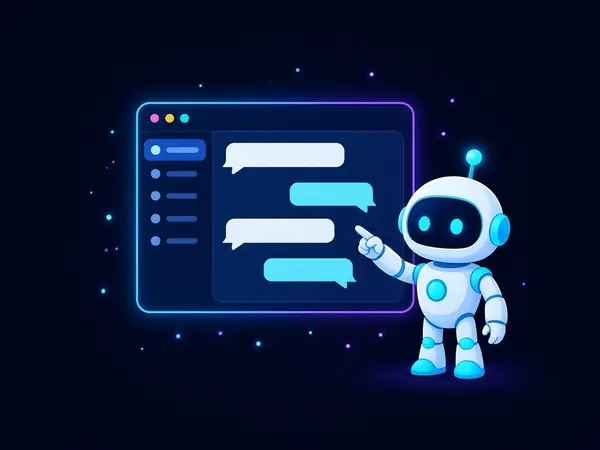 3. A quick tour of the app
 4. A tour of Settings
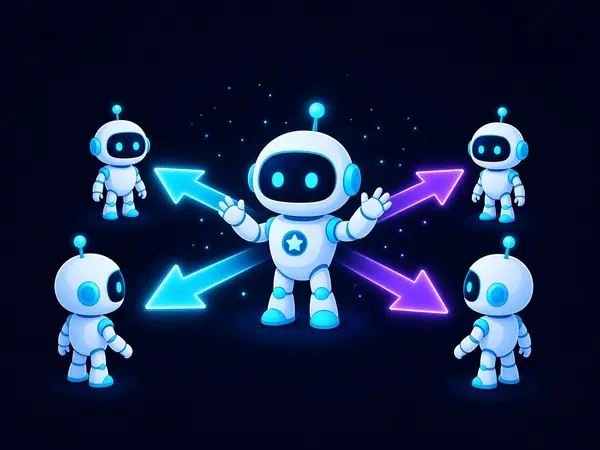 5. What the primary bot does
 6. Creating your first bot
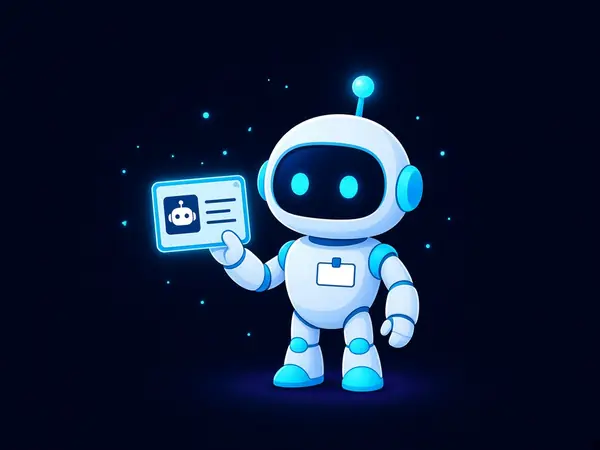 7. Naming and describing your bots
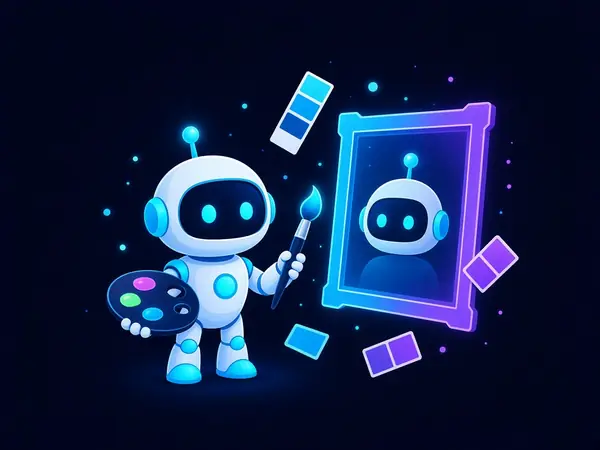 8. Customize your bot: name, picture and colors
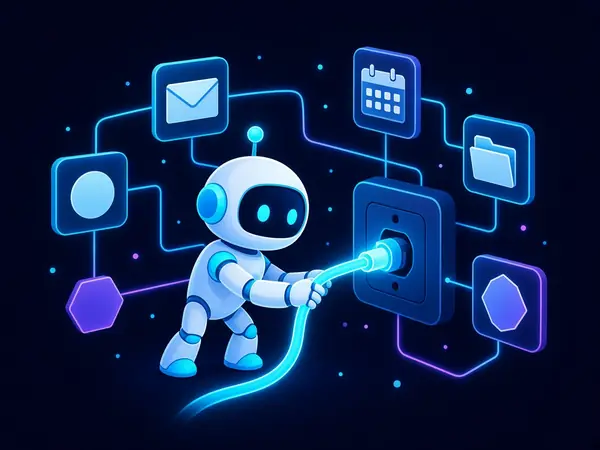 9. Connecting apps (connectors)
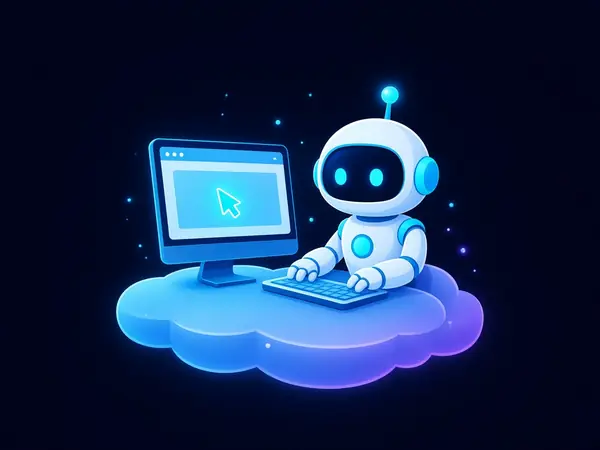 10. Your bot's computer and browser
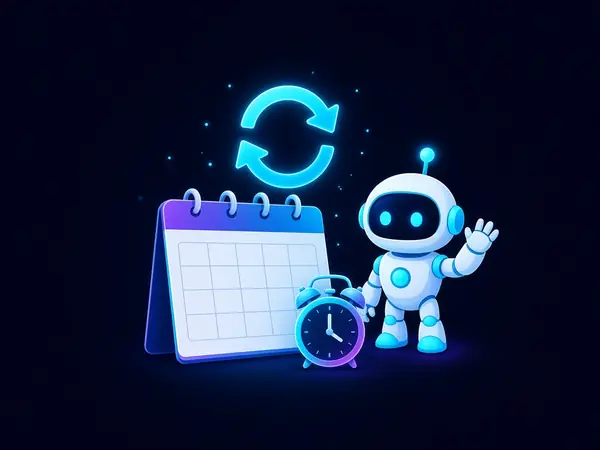 11. Routines (scheduled tasks)
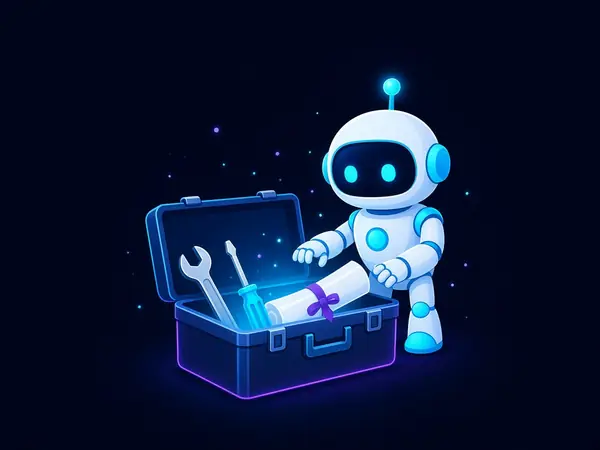 12. Skills
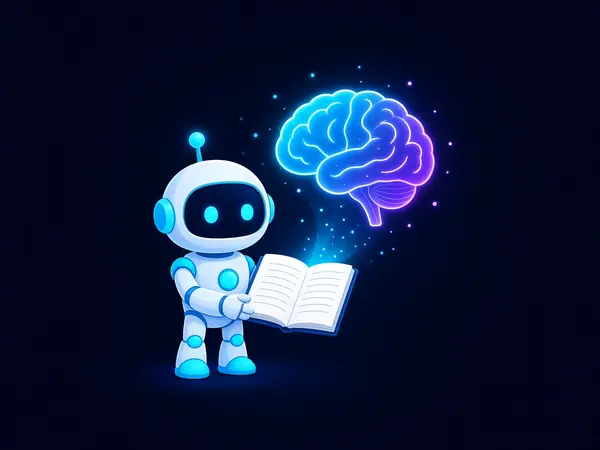 13. Memory
 14. Safety and approvals
 15. Keeping Grok Bot up to date
 16. Removing a bot you no longer need
Beginner tutorials
Want to learn how bots work under the hood? Start with these short tutorials: