Step 8: Customize your bot: name, picture and colors Beginner

Once you have more than one bot, it's easy to lose track of which one you're talking to. Customizing each bot fixes that. A name that says its job, a short description and a picture that matches the job let you tell bots apart at a glance in the sidebar and the chat header. For example, a mail bot can have an envelope picture and an orders bot a cardboard box. You can also change the app's colors to suit you.
What you'll learn
- Why a distinct look for each bot helps
- Where to change a bot's name, title and description
- How to give a bot a picture, either one it makes or one you upload
- Where to change the app's theme and accent color
Before you start
- Grok Bot is installed and you're signed in (Where to download, Installing and signing in).
- You've created at least one bot (Step 6).
1. Open your bot's info pane
Each bot has its own info pane, separate from the app-wide Settings window.
- Open the bot's chat from the sidebar.
- Click the bot's name in the chat header, or press Cmd+Shift+I. This opens the bot's info pane, a side panel about that bot.
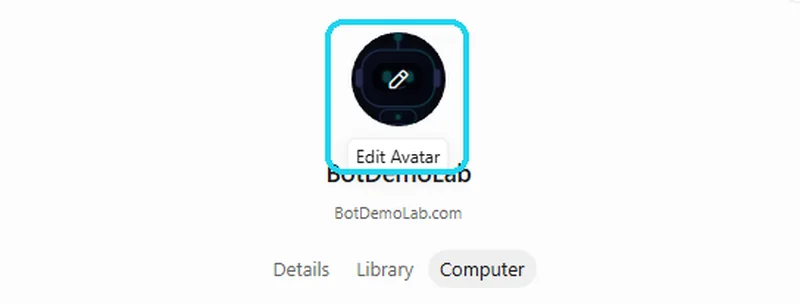
- At the top of the pane you'll see the bot's picture (its avatar) and name. Hover over the picture and an Edit Avatar button appears.
2. Name it after its job
- Choose a name that says the role, like "Mail Helper" or "Orders Bot". To rename it, right-click the bot in the sidebar and choose Rename Bot, or ask the bot in its chat to rename itself.
- Add a short title, a one-line role such as "Sorts my inbox and drafts replies".
- Fill in the description: what the bot handles and what it doesn't. Your primary bot uses this to pick the right bot for a job (more in Step 7).
3. Give it a picture
Pick a picture that matches the bot's job, so you can spot it instantly. You can change it yourself in the app, or ask the bot to do it in chat.
In the app: Edit Avatar
- Open the bot's info pane and hover over its picture.
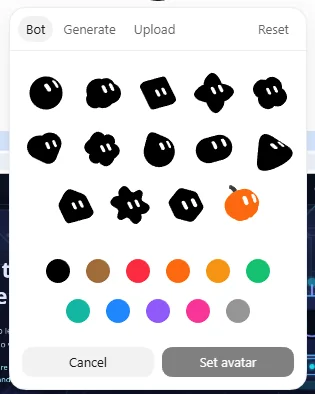
- Click Edit Avatar. A small window opens with three tabs: Bot, Generate and Upload, plus a Reset link.
- On the Bot tab, pick one of the character shapes and one of the color swatches. Or use Generate or Upload instead.
- Click Set avatar to save, or Cancel to leave it as it was.
Option A: have the bot make one
- Open the bot's chat.
- Type something like:
Make me a profile picture of a friendly robot holding an envelope, and use it as your picture.
- Look at the result. If you don't like it, ask for changes ("brighter colors, simpler shapes").
Option B: use your own image
- Pick a square image, like a logo or icon.
- Attach it in the bot's chat and type:
Use this image as your picture.
If your bot can't change its own picture, ask it: "How do I change your avatar?"
4. Change the app's colors
These settings change how the whole app looks, not a single bot.
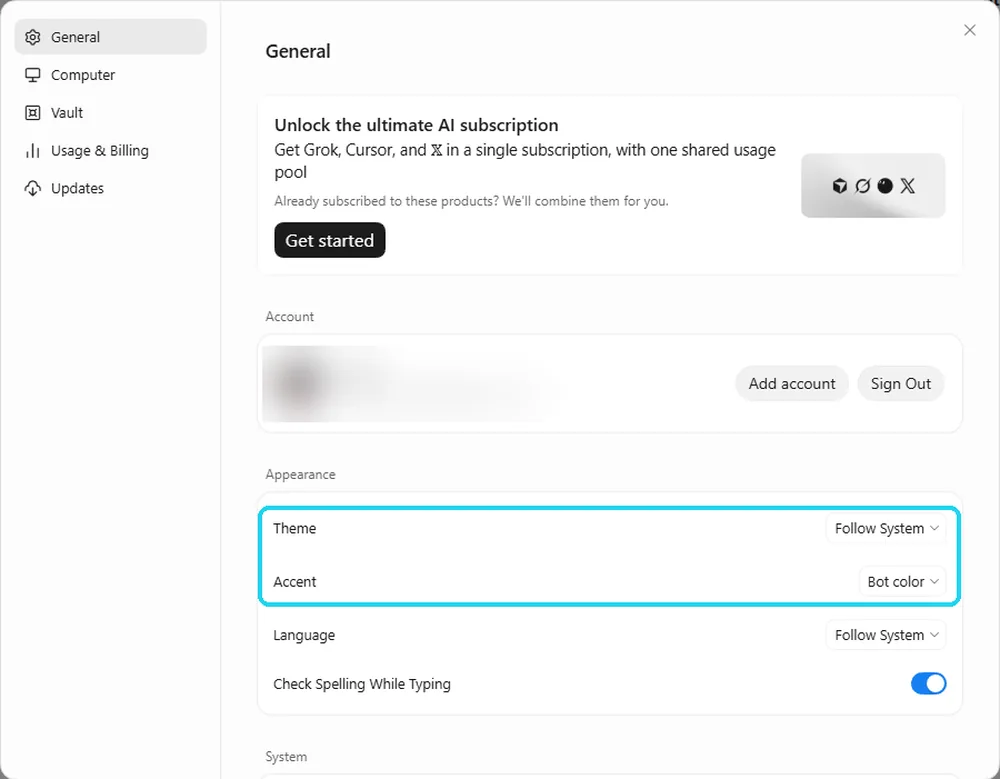
- Open Settings: click your account button at the bottom-left of the sidebar, or press Cmd+,.
- Stay on the General tab.
- Under Theme, pick Follow System, Light or Dark.
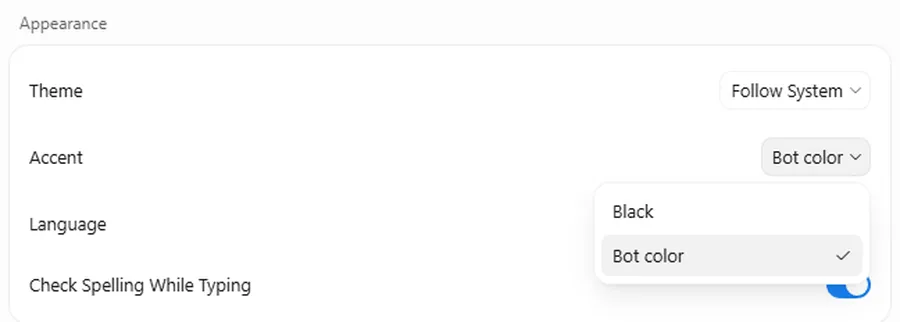
- Find the Accent row, just below Theme under Appearance, and open its menu to change the highlight color. There are two choices: Black, or Bot color. In our screenshot Bot color is selected.
More on Settings in Step 4: A tour of Settings.
Ideas to try
- Inbox bot.
Make me a profile picture of a friendly envelope character and use it as your picture.
- Online shop.
Rename yourself "Orders Bot", set your title to "Tracks orders and shipping", and make a cardboard-box picture.
- Family organizer.
Make a calendar-themed picture for my family schedule bot.
- Small business logo.
Use this image (my logo) as your picture.
- Tidy-up.
Look at all my bots and suggest a clearer name, one-line title and picture idea for each so I can tell them apart.
Tips
- Use one picture per job, and don't give two bots the same image.
- Pick simple, bold pictures, since they're small in the sidebar.
- Put the role in the name ("Mail", "Orders", "Calendar"), not a nickname.
- Update the name, description and picture if a bot's job changes.
Facts about the app on this page come from Cursor's official Grok Bot documentation. Menus can change between versions; if something looks different, check the official docs.